
How to Write Effective Prompts for Report Templates
Introduction
This guide teaches you how to instruct Sky AI when building report templates. It assumes zero prior experience with AI or prompting — if you have never written an instruction for an AI system before, this guide is for you.
Report templates are reusable blueprints that tell Sky AI how to build a report from your case documents. The quality of your reports depends directly on the quality of the instructions (prompts) inside your templates. This guide explains not just where to type your instructions, but how to think when writing them.
Who This Guide Is For: Anyone responsible for creating or refining report templates in Sky AI — report writers, QA specialists, case managers, assessors, and organization administrators. No technical or AI background required.
What You'll Learn:
- The three building blocks of a report template and what each one does
- What a prompt actually is (in plain language)
- The eight types of instructions you can give the AI
- How to turn a vague prompt into a precise one, step by step
- Best practices and common mistakes to avoid
Understanding Report Templates
Where Templates Live
Report templates are managed in Settings → Reports. This page lists every template available to your organization. Each template card shows its name and definition, so anyone on your team can understand what it produces before using it.
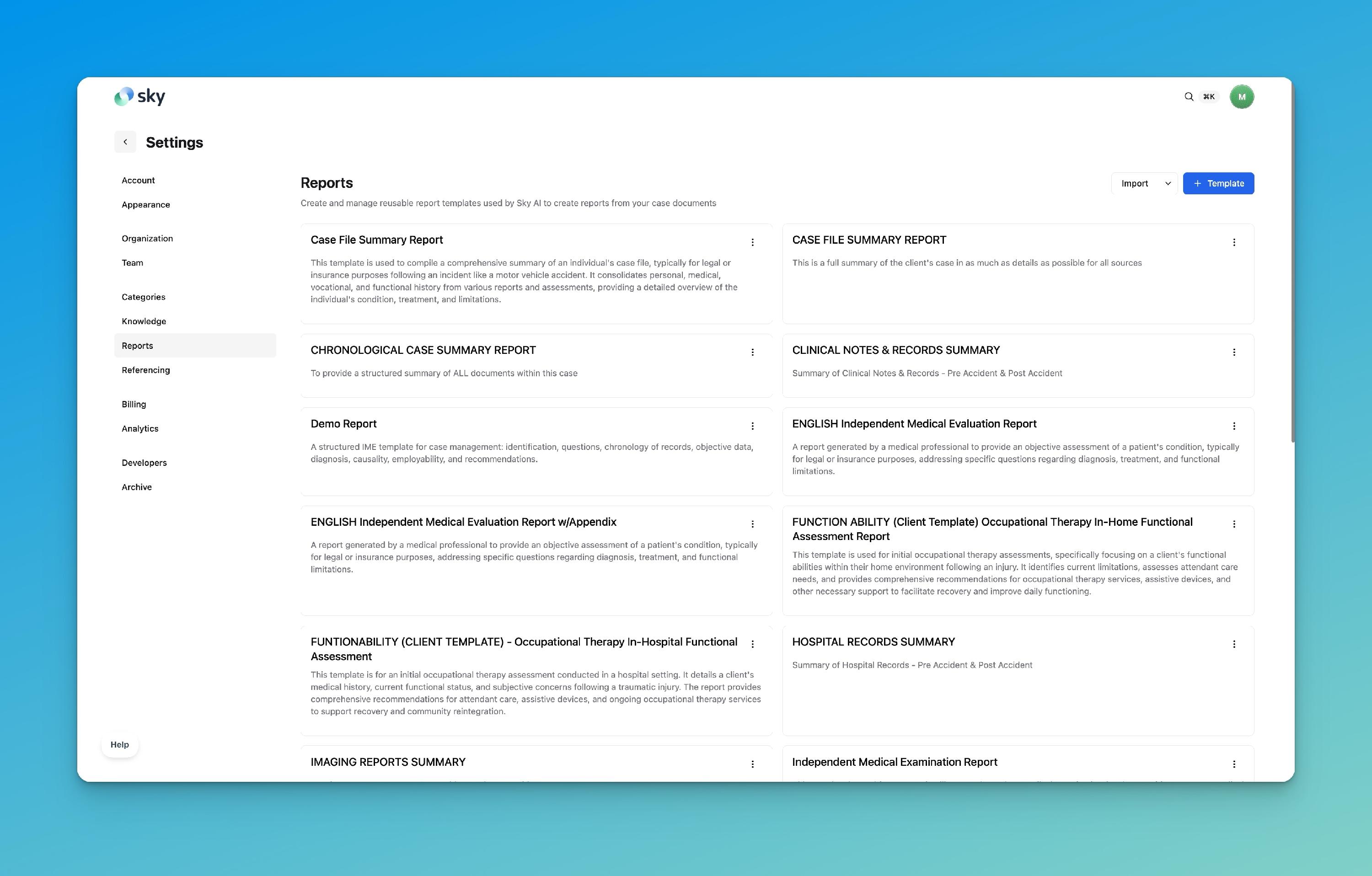
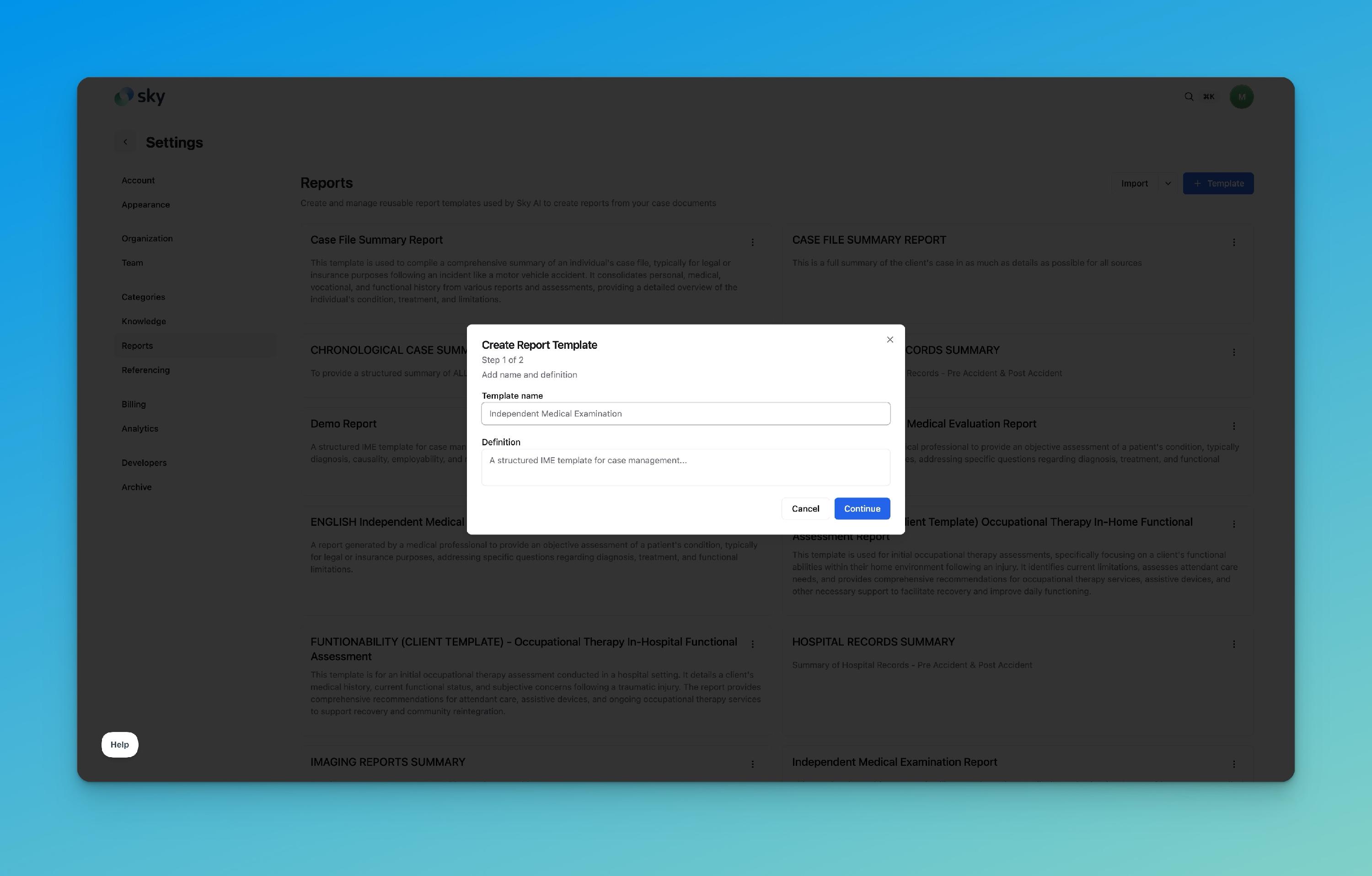
To create a new template, click + Template. Creation happens in two steps:
Step 1 — Name and Definition. Give the template a clear name and a short definition describing what the report is for. The definition is what your teammates will read in the template library, so write it for humans: "A structured IME template for case management: identification, questions, chronology of records, objective data, diagnosis, causality, employability, and recommendations."
Step 2 — Instructions. This is where you build the actual structure of the report, block by block. Everything in the rest of this guide happens here.
The Three Building Blocks
At the bottom of the Step 2 editor you'll find three buttons: + Section, + Doc List, and + Chronology. These are the three types of blocks a template can contain, and they work very differently. Understanding the difference will save you a lot of confusion.
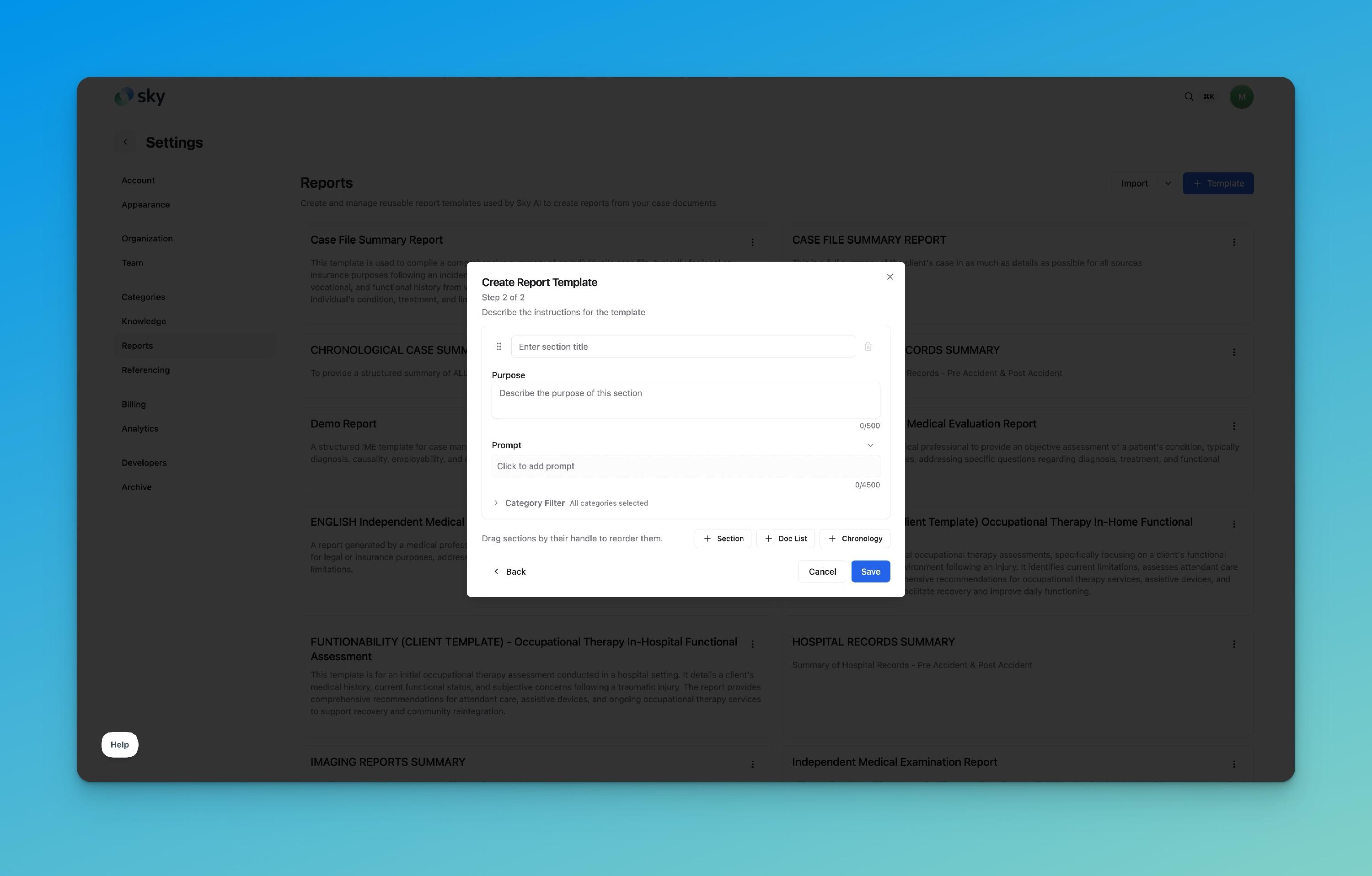
1. Section — the only block where you write a prompt.
A Section is a free-form part of the report generated by the AI according to your instructions. It has four parts:
| Field | What it does | Limit |
|---|---|---|
| Section Title | The heading that appears in the final report (e.g., "Personal History") | — |
| Purpose | A short human-readable note explaining why this section exists. Written for your team, not for the AI. | 500 characters |
| Prompt | The actual instructions the AI follows to generate this section's content. This is where all your prompting effort goes. | 4,500 characters |
| Category Filter | Controls which document categories the AI is allowed to use as sources for this section | — |
Purpose vs. Prompt — don't mix them up. The Purpose answers "why is this section in the report?" for a colleague reviewing the template. The Prompt answers "what exactly should the AI produce?" A good Purpose is one or two sentences; a good Prompt is often a full paragraph of detailed instructions.
2. Doc List — no prompt needed.
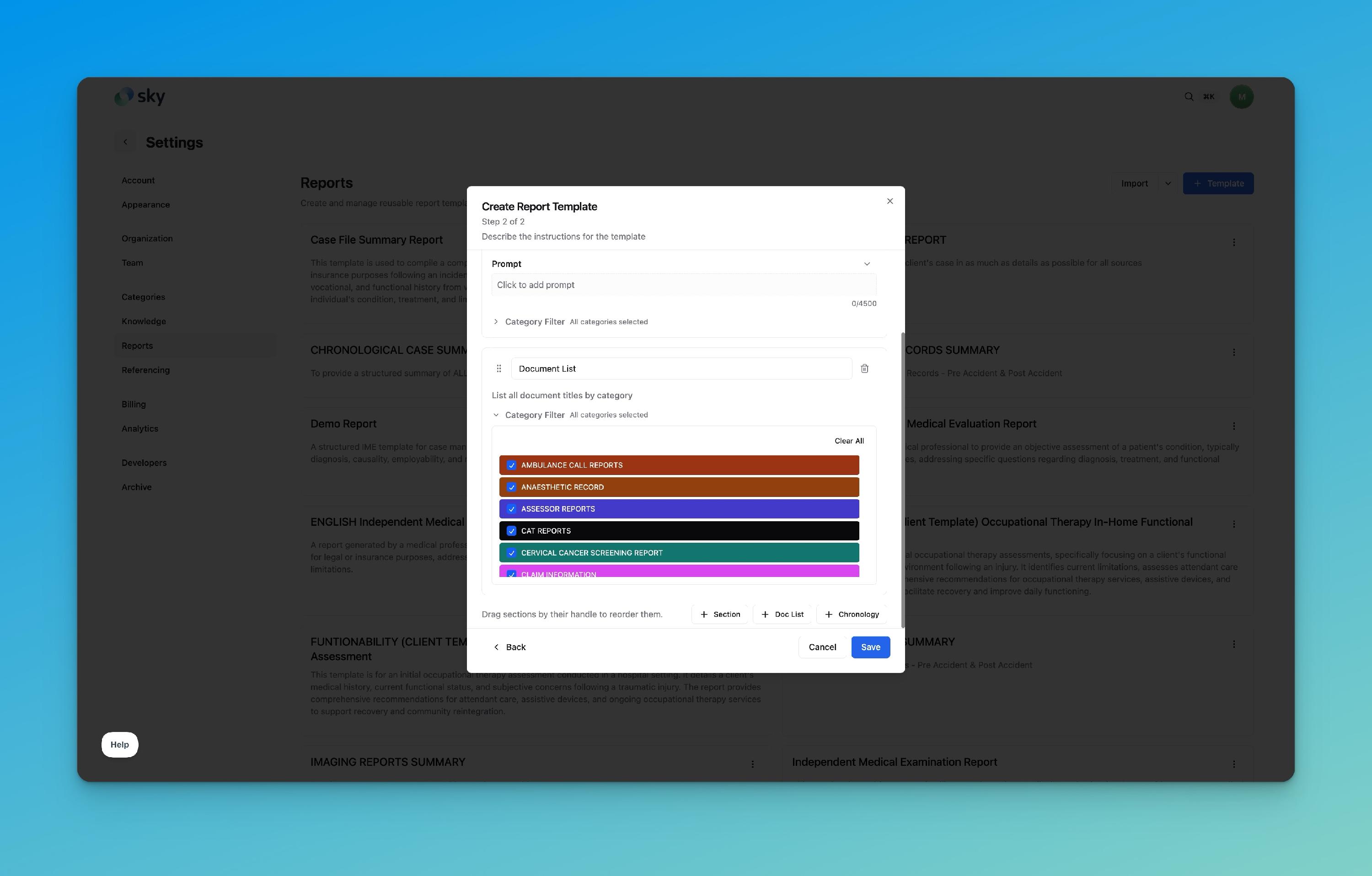
A Doc List block automatically inserts a list of all document titles in the case, grouped by category. You do not write a prompt for it — the behavior is built in. You can edit its Title (it defaults to "Document List") and use the Category Filter to narrow which document types are listed (for example, only Assessor Reports and OCF Forms).
3. Chronology — deterministic by default, customizable if you want.
A Chronology block inserts a date-ordered timeline of all case events. By default it renders events exactly as extracted — no AI rewriting involved. Like other blocks, it has an editable Title (defaults to "Chronology") and a Category Filter. Its unique control is the Per-Event Expansion Prompt (up to 20,000 characters). If you fill it in, the AI restyles each event according to your instructions; if you leave it empty, you get clean, deterministic output. For most templates, leaving it empty is the right call — only add an expansion prompt when you need each event rewritten in a specific voice or format.
💡 Key takeaway: If you're looking for the Prompt field on a Doc List or Chronology block and can't find it — that's by design. Your main prompting work happens in Sections. (Chronology's Per-Event Expansion Prompt is the one exception, and it's optional.)
The Category Filter: Your Precision Tool
Every block has a Category Filter, and it may be the most underused control in the template editor. By default, all categories are selected, meaning the AI can draw from every document in the case. Click the filter to expand it and you'll see a checklist of all your document categories.
Narrowing the filter does two things:
- Improves accuracy. If your "Imaging Findings" section only needs radiology reports, restricting it to imaging categories removes noise and reduces the chance of the AI pulling in unrelated content.
- Improves traceability. When a section can only draw from specific document types, verifying its claims against sources becomes much faster.
Rule of thumb: for broad overview sections (like a general Personal History), keep all categories. For narrow, specialized sections, filter aggressively.
What Is a Prompt?
A prompt is simply written instructions for the AI — nothing more mysterious than that.
The best way to think about it: imagine you've just hired a brand-new employee. They are smart, fast, and extremely literal. They have read every document in the case file — but they know absolutely nothing about your organization, your report standards, your preferences, or what "a good summary" means to you. They will do exactly what you tell them — and nothing you don't.
- If you tell this new employee "summarize the medical records," you'll get a summary — but its length, order, format, and focus will be their guess, not your standard.
- If you tell them "produce a numbered list, one point per source document, starting each point with the document name and date, covering diagnoses, treatments, and functional status, in a factual and objective tone" — you'll get exactly that, every time.
Three consequences follow from this mental model:
- The AI only knows what you tell it. Unstated expectations produce unpredictable results. If the order of information matters, say so. If a detail must appear every time, say so.
- Clarity beats brevity. A longer, more explicit prompt is almost always better than a short, vague one. You have 4,500 characters per section — use them.
- Nothing is "obvious." What's obvious to a ten-year veteran of medical-legal reporting is not obvious to a first-day employee. Spell it out.
The Eight Types of Instructions
Every effective prompt is built from a small number of instruction types. You don't need all eight in every prompt but knowing the full toolkit helps you diagnose why a prompt isn't producing what you want. For each type below, the example is a phrase you can adapt directly into your own prompts.
1. Structuring the Output
Tell the AI what shape the content should take: headings, paragraphs, bullet points, numbered lists, or tables.
Generate a numbered list. Each point must cover one source document.
Present the findings as a table with three columns: Date, Provider, Key Finding.
If you don't specify structure, the AI chooses one for you — and it may choose differently from one report to the next.
2. Formatting
Control the visual presentation: bold, italics, spacing, and consistent styling.
Bold the date, provider name, and document type. Each document must be referenced in its own paragraph.
Separate each assessment with a blank line. Do not use headings inside this section.
3. Organizing Information
Tell the AI in what order and grouping to present information: chronologically, by provider, by diagnosis, by document, or by body system.
Describe the findings in chronological order, from the earliest record to the most recent.
Group the findings by body system: cervical spine first, then shoulder, then lumbar spine, then psychological.
4. Writing Style & Audience
Set the tone and level of detail: concise vs. detailed, professional vs. clinical, objective vs. subjective, narrative vs. informational.
Maintain a factual, objective, and professional tone, presenting information directly from the sources without interpretation or analysis.
Write for an insurance adjuster, not a physician: avoid unexplained clinical abbreviations.
5. Content Transformation
Specify what operation to perform on the source material: summarize, paraphrase, quote verbatim, extract, compare, synthesize, condense, or expand.
Summarize each assessment in 2–3 sentences. Do not quote verbatim except for diagnoses.
Compare the claimant's current functional capacity results to their pre-event functioning.
6. Controlling the AI
Set explicit boundaries: what to include, what to exclude, how to handle missing information, and conditional rules.
Do not show or summarize any documents from the Correspondence or Miscellaneous categories.
If a detail is not found in the source documents, state "Not Documented" — do not guess or infer.
If imaging results are present, list each study with its date and impression; if none are present, state "No imaging studies on file."
This category is where you prevent the most dangerous failure mode: the AI filling gaps with plausible-sounding assumptions. Explicit "do not assume" and "Not Documented" rules are your safety rails.
7. Source Handling
Tell the AI how to treat its sources: cite them, identify them, and stay inside them.
Each point must begin by identifying the source document or report and its date.
Use only information contained in the source documents. Do not add general medical knowledge.
In medical-legal work this is non-negotiable: a statement that can't be traced to a page is a statement that can't be defended. Instructing the AI to lead with the source document produces output where every claim is anchored.
8. Providing Examples
Show the AI the exact output format you want. One concrete example is often worth a paragraph of description.
Itemize each treatment plan in the following format:

1. OCF-18 Treatment and Assessment Plan submitted on October 29, 2025 by
   Dr. Ana Bodnar, Psychologist, recommending Mental health assessment and
   Psych pre-screen/counseling, with a total cost of $2,179.93; this plan
   was partially approved on November 7, 2025.

2. OCF-18 Treatment Plan submitted on November 3, 2025 by Nabeel Syed,
   Chiropractor, recommending Physiatry Assessment and Medical File Review
   over a 1-week duration, with an estimated cost of $2,550.00; this plan
   was denied by the insurer on November 17, 2025.
Notice how this prompt provides two examples that cover different outcomes (approved vs. denied). The AI now knows exactly what information to include, in what order, and at what level of detail — without the author having to describe the format in words.
From Vague to Precise: Building a Prompt Step by Step
Let's build a real prompt the way you would in practice. Starting from the vague version everyone writes first, and improving it one instruction type at a time. This is the section to follow along with in your own template editor.
Version 1 — the starting point
Summarize the medical records.
This will produce something. But you have no control over the length, order, format, or focus and two reports generated from this prompt may look completely different. Every improvement below adds one type of instruction from the toolkit above.
Version 2 — add structure
Generate a numbered list summarizing the medical records. Each point in the list must cover one source document.
What changed: the output now has a predictable shape (Type 1: Structure).
Version 3 — add source handling
Generate a numbered list summarizing the medical records. Each point must begin by identifying the source document or report and its date, followed by a concise summary of the relevant information extracted from that source.
What changed: every point is now anchored to a named, dated source (Type 7: Source Handling). A reviewer can verify any claim in seconds.
Version 4 — add content rules
Generate a numbered list summarizing the medical records. Each point must begin by identifying the source document or report and its date, followed by a concise summary of the relevant information extracted from that source. Include details such as the date and nature of the incident, immediate symptoms, diagnoses, treatments received, medical professionals involved, pre-incident status (occupation, lifestyle, prior medical history), and post-incident limitations (inability to work, cognitive issues, sleep disruption).
What changed: the AI now knows exactly which details matter to you (Type 6: Controlling the AI). Nothing important gets skipped because the AI didn't know it was important.
Version 5 — add tone and guardrails
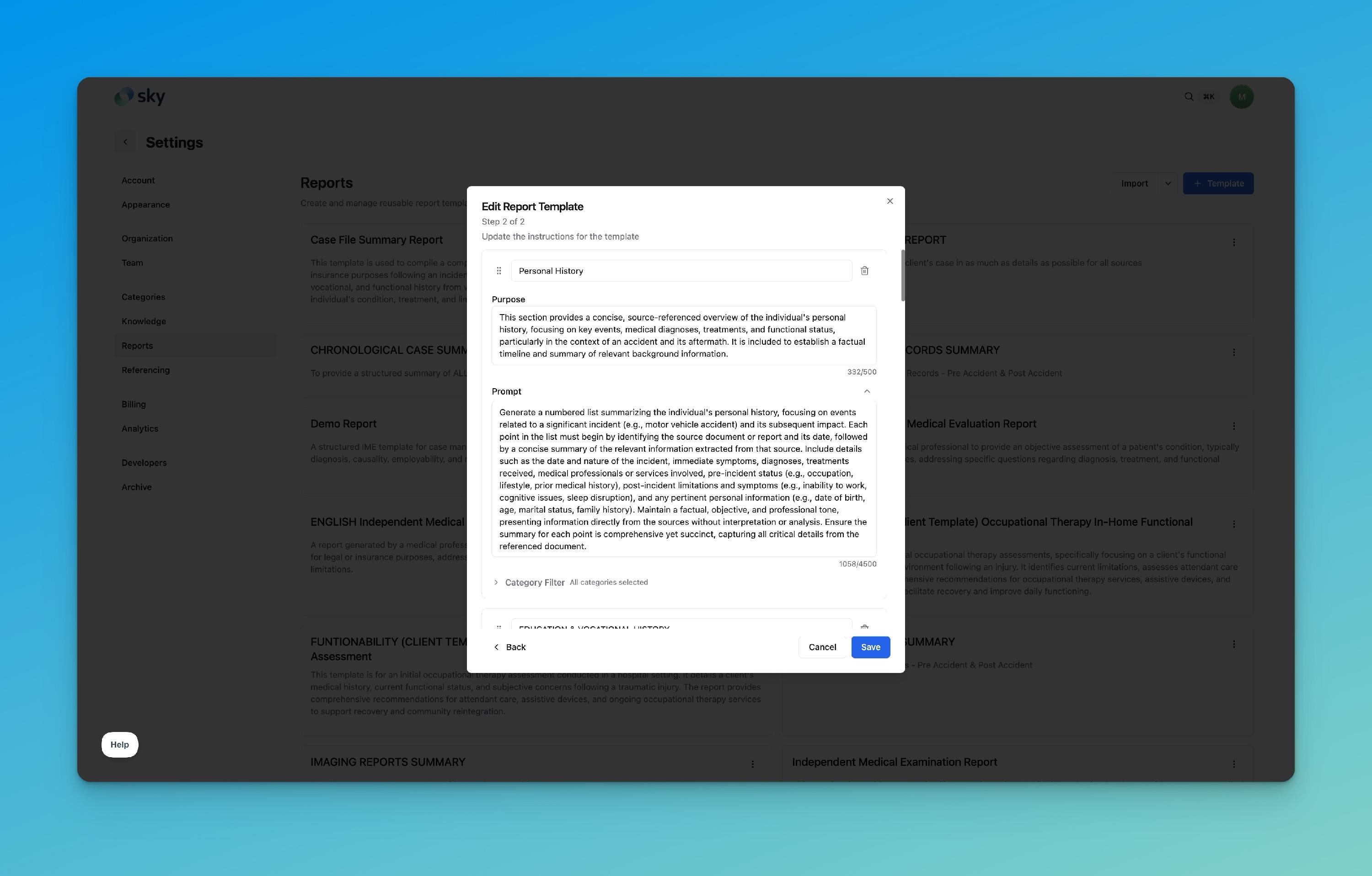
Generate a numbered list summarizing the medical records. Each point must begin by identifying the source document or report and its date, followed by a concise summary of the relevant information extracted from that source. Include details such as the date and nature of the incident, immediate symptoms, diagnoses, treatments received, medical professionals involved, pre-incident status (occupation, lifestyle, prior medical history), and post-incident limitations (inability to work, cognitive issues, sleep disruption). Maintain a factual, objective, and professional tone, presenting information directly from the sources without interpretation or analysis. Ensure the summary for each point is comprehensive yet succinct, capturing all critical details from the referenced document.
What changed: tone is locked in (Type 4: Style), and interpretation is explicitly forbidden (Type 6 again). The output is now consistent, verifiable, and defensible and it will look the same on the hundredth report as on the first.
If Version 5 looks familiar, that's because it is essentially the production prompt behind the Personal History section of the Case File Summary Report template:
What the output looks like
Here is what that prompt produces on a real case: a numbered list, one point per topic, each fact traceable to a named, dated source, in a strictly factual tone.
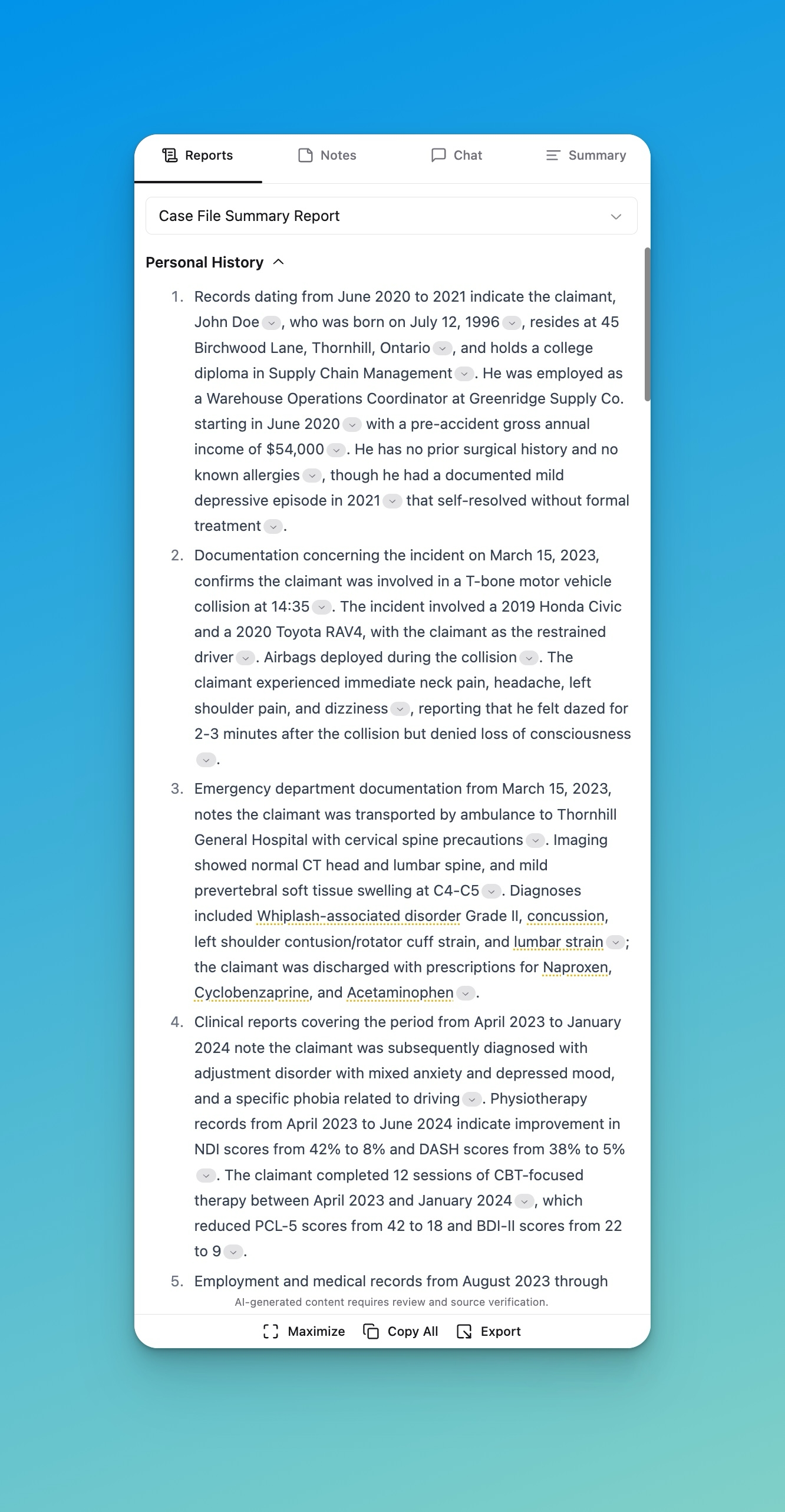
Notice the direct line from instruction to result: "numbered list" → the report is a numbered list; "begin by identifying the source document and its date" → every point opens with "Records dating from…", "Documentation concerning the incident on March 15, 2023…"; "without interpretation or analysis" → the report states findings and never editorializes.
Two more real prompts, two different styles
Different sections legitimately need different instructions. Compare these two production prompts:
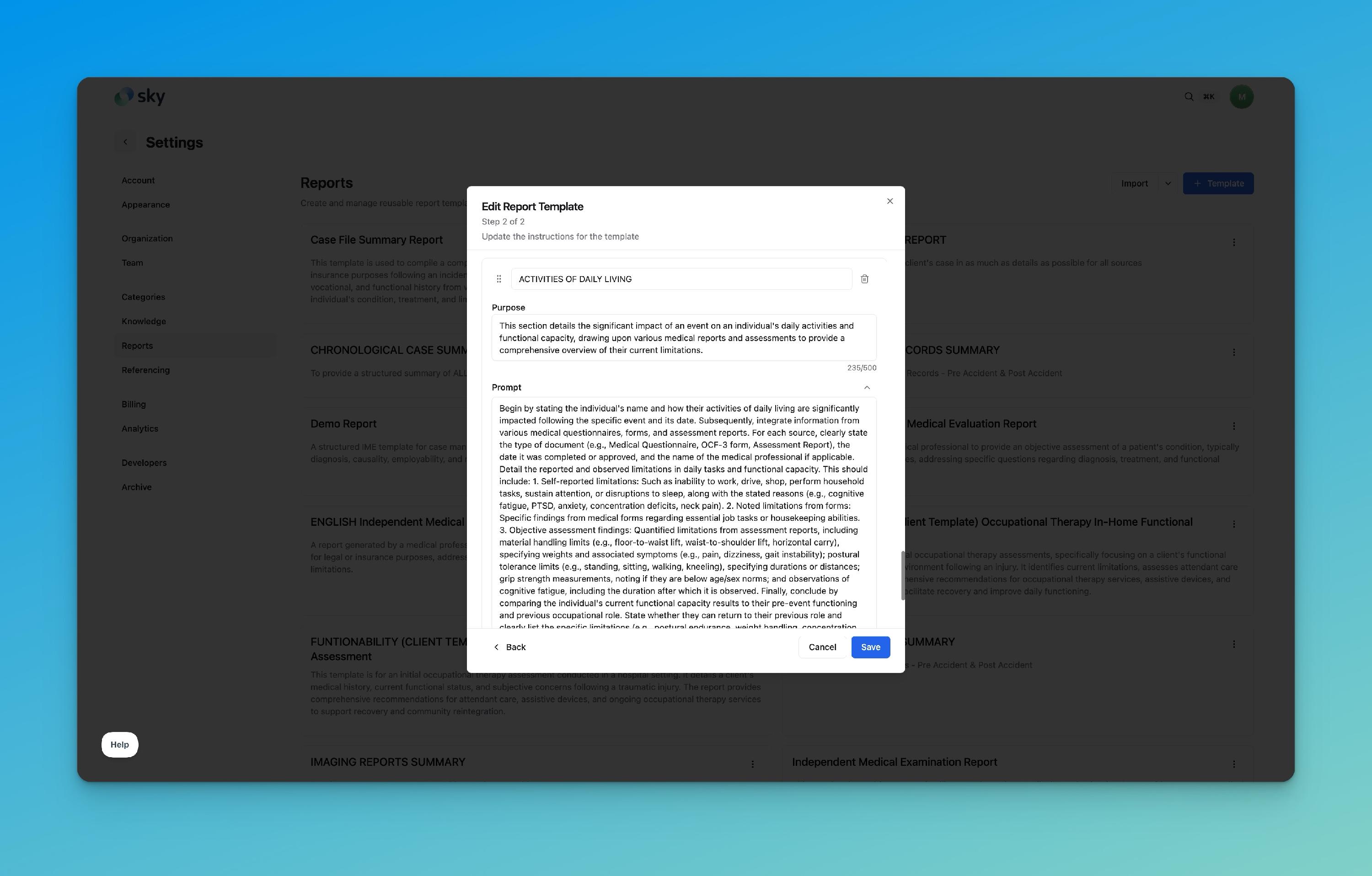
Activities of Daily Living — a highly structured, itemized prompt that even numbers its own sub-requirements (self-reported limitations, findings from forms, objective assessment findings) and ends with a comparison instruction:
History of Subject Loss — a narrative prompt: it asks for "a comprehensive narrative," "distinct paragraphs for the initial incident and each subsequent assessment," and chronological order:
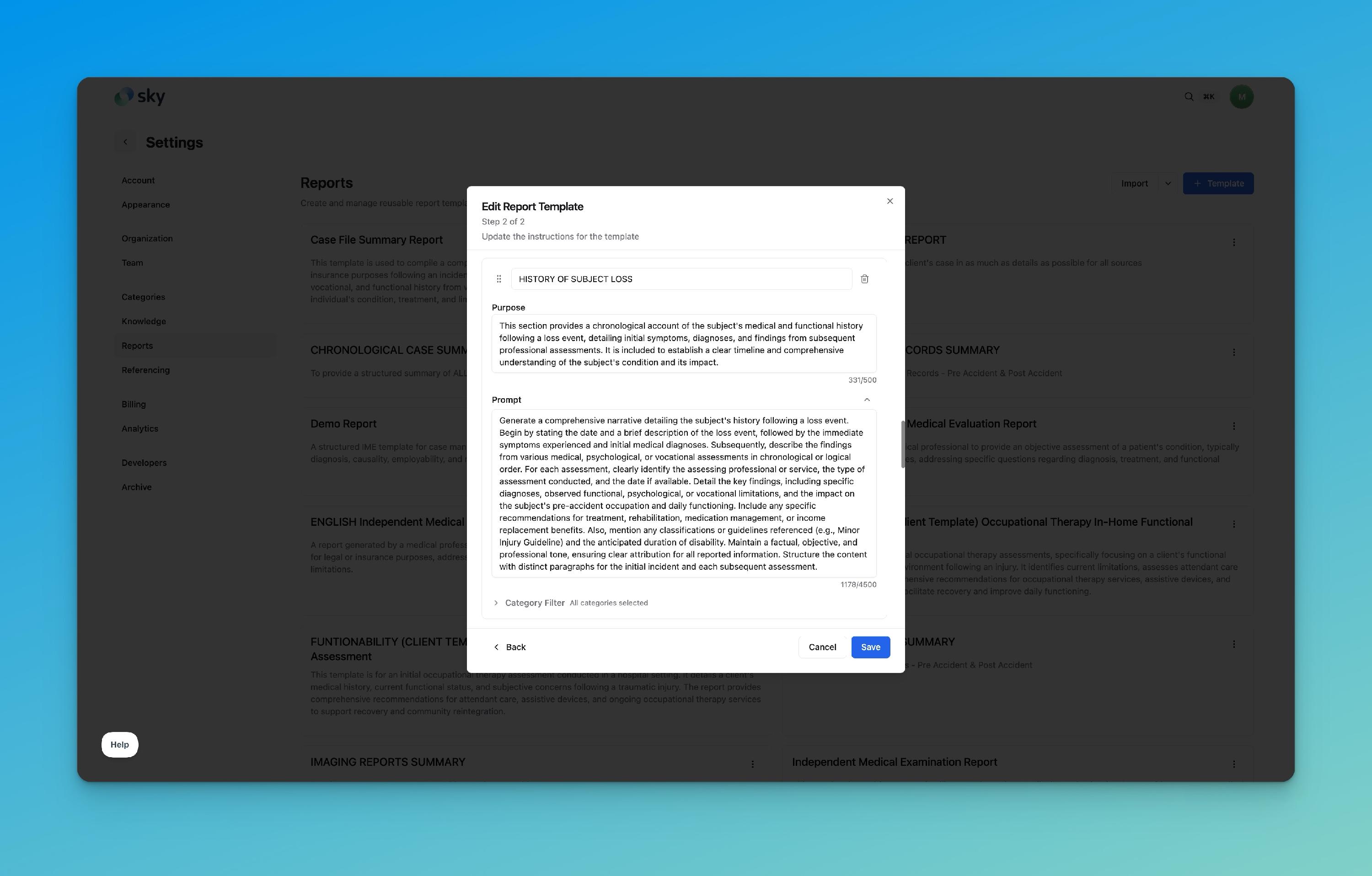
Same toolkit, different choices. The itemized style suits sections where completeness is checked point by point; the narrative style suits sections read as prose by a decision-maker. Choose deliberately per section and say so in the prompt.
Real Templates at a Glance
To show the range of what templates look like in practice, here are five production templates from different use cases. Notice how they vary in size and complexity:
| Template | Sections | Style |
|---|---|---|
| Treatment Plan Summary | 1 | A single focused section with output examples — the simplest template possible |
| Chronological Case Summary Report | 2 | Two sections splitting pre- and post-incident records, each with explicit exclusion rules |
| Chronology Summary of Medical Records | 4 | Four specialized sections: timeline, gap analysis, medication extraction, and causation |
| General Practitioner Insurer's Examination Report | 20 | Comprehensive IME template covering history, examination, diagnosis, referral questions, and legal disclosures |
| Defense Personal Injury Medical Analysis Report | 18 | Advanced template with strict structural requirements per section — heading levels, table formats, word counts, and verbatim boilerplate |
There is no "right" size. A one-section Treatment Plan Summary with clear examples can produce excellent output. An 18-section Defense template reflects a complex deliverable with exacting format requirements. Start simple you can always split sections or add detail as you see what the AI produces.
Best Practices
Be specific. Vague words ("relevant details," "important information") mean the AI decides what's relevant. List what you mean.
One section, one job. Don't ask a single section to summarize records and build a timeline and list documents. Split the work: use a Section for the summary, a Chronology block for the timeline, a Doc List block for the document list. The best production templates follow this principle for example, the Chronology Summary of Medical Records template uses four separate sections (timeline, gap analysis, medication extraction, and causation) rather than one massive prompt.
Don't give conflicting instructions. "Be comprehensive but keep it to two sentences" forces the AI to break one of your rules. Re-read your prompt for contradictions before saving.
If formatting matters, say so. No instruction about bold, tables, or lists means the AI improvises — differently each time.
If order matters, say so. "Chronological order," "most recent first," "group by provider" — one phrase buys you consistency.
If something must happen every time, say it explicitly. "Each point must begin with the source document and date" — the word must is doing real work there.
Handle missing information deliberately. Add a rule like: If information is not found in the documents, state "Not Documented." Otherwise the AI may fill gaps with plausible assumptions. The single most damaging behavior in medical-legal reporting.
Prompting is iterative. Nobody writes the perfect prompt on the first try not even AI specialists. Write, generate on a familiar test case, compare against what you expected, refine, repeat. Two or three iterations is normal; it's how the production prompts in this article were built.
Test on a case you know well. You can only judge output quality if you already know what the correct answer looks like. Keep one well-understood case as your testing ground for every template change.
Common Mistakes to Avoid
Mistake 1: Writing instructions in the Purpose field
Problem: Detailed generation rules typed into Purpose, while the Prompt stays thin. The Purpose field is documentation for your team. The AI's behavior is driven by the Prompt.
Solution: Purpose = one or two sentences of "why this section exists." Everything about what the AI should produce goes in the Prompt.
Mistake 2: Looking for a Prompt field on Doc List and Chronology blocks
Problem: Users assume every block needs a prompt and get stuck.
Solution: Only Sections take prompts. Doc List is fully automatic; Chronology is automatic unless you deliberately add a Per-Event Expansion Prompt.
Mistake 3: One giant section instead of several focused ones
Problem: A single 4,000-character prompt trying to produce the entire report body. Output becomes long, unfocused, and hard to verify.
Solution: Break the report into sections that mirror how it will be read: Personal History, Education & Vocational History, Activities of Daily Living, and so on. Each with its own focused prompt and, where useful, its own Category Filter.
Mistake 4: No rule for missing information
Problem: The prompt asks for details the documents may not contain, with no instruction on what to do when they don't.
Solution: Always include a fallback: "If not documented in the sources, state 'Not Documented.' Do not assume or infer."
Mistake 5: Leaving every Category Filter wide open
Problem: Specialized sections drawing from all case documents pick up noise and irrelevant content.
Solution: Narrow the filter for narrow sections. An imaging section should read imaging reports, not correspondence.
Mistake 6: Changing five things at once when refining
Problem: The output improves (or worsens) and you can't tell which change caused it.
Solution: Refine one instruction at a time, regenerate, compare. Slower per step, much faster overall.
Mistake 7: Assuming the AI shares your context
Problem: Prompts like "summarize in the usual format" or "follow our standard structure." The AI has no idea what your usual format is.
Solution: Spell out the format or paste an example of it (instruction Type 8).
Conclusion
Writing prompts is not a technical skill — it's the skill of giving clear instructions, the same one you use when training a new team member. The template editor gives you three building blocks (Section, Doc List, Chronology), and your prompting effort goes primarily into Sections: a clear Title, a short human-readable Purpose, a detailed Prompt built from the eight instruction types, and a deliberately chosen Category Filter.
Key takeaways:
- The AI only knows what you tell it — unstated expectations produce inconsistent output
- Prompts belong to Sections — Doc List works automatically; Chronology does too, unless you opt into the Per-Event Expansion Prompt
- Use the eight instruction types — structure, formatting, organization, style, transformation, control, source handling, examples
- Anchor everything to sources — "begin by identifying the source document and its date" is the highest-value sentence in medical-legal prompting
- Iterate — write, test on a known case, refine one thing at a time
Next Steps
- Open Settings → Reports and duplicate or open an existing template
- Pick one section and read its Prompt against the eight instruction types — identify which types it uses and which it's missing
- Improve one instruction, regenerate the report on a test case you know well, and compare
- Build your next template section by section, starting each prompt from the Version 5 pattern in this guide
- Share your refined prompts with your team — a good prompt is reusable organizational knowledge
For a companion guide on controlling which documents feed your reports, see "How to Use Category Folders to Improve Document Categorization".